Serial Monitor on macOS: Terminal Tools and a Native App
macOS ships no graphical serial monitor. Here is how to find your device under /dev/cu, why screen and cu are awkward, and a better native option.

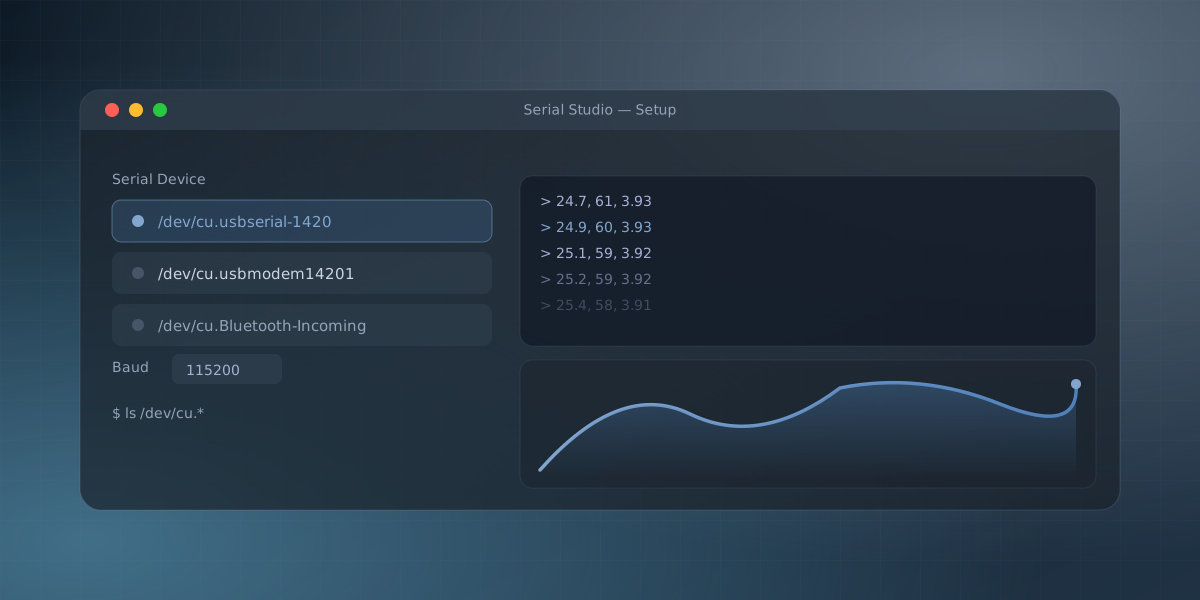
On Windows, when you need to look at a serial port you reach for PuTTY, RealTerm, or the vendor's tool. On macOS there is no equivalent that ships with the system. You get two command-line utilities, screen and cu, and that is the whole toolbox. For a lot of people this is the first surprise after switching to a Mac for embedded work. If you're on Windows instead, the equivalent guide covers COM ports and PuTTY.
This post covers how to find and open a serial device on macOS with what you already have, why those tools get frustrating quickly, and what to use instead.
Finding the device
Plug in your board or adapter and list the serial devices:
ls /dev/cu.*
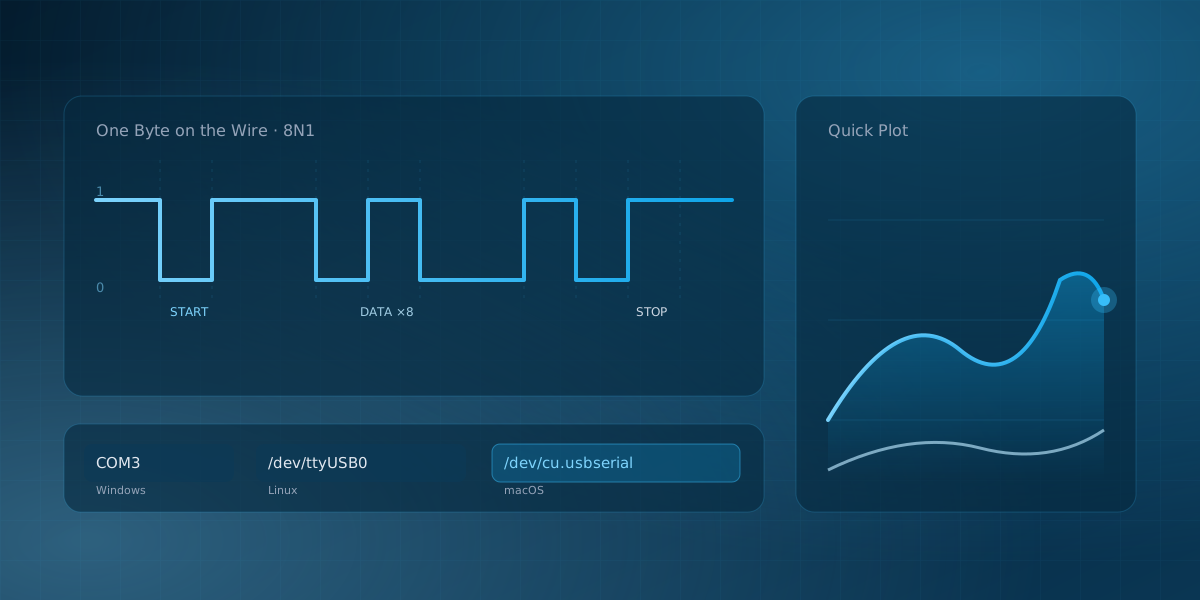
You will see something like /dev/cu.usbserial-1420 for an FTDI or CP210x adapter, or /dev/cu.usbmodem14201 for a board with native USB such as a Uno R4 or a Teensy.
You may notice each adapter also has a /dev/tty.* twin. The difference is real and worth knowing. The tty.* device waits for a hardware carrier-detect signal before it opens, which is a leftover from the modem era and usually causes a program to hang. The cu.* device (short for "call-up") opens immediately. For talking to a microcontroller, always use cu.*. Serial Studio only lists the cu.* devices for exactly this reason.
Using screen, and why it grates
The quickest look is screen, giving it the device and the baud rate:
screen /dev/cu.usbserial-1420 115200
Text starts scrolling. That is about as far as the good news goes:
- There is no scrollback. Whatever left the top of the window is gone.
- There are no timestamps and no way to plot anything. You are reading raw text.
- Exiting is cryptic. You press
Ctrl-A, thenK, then confirm withy. Nobody guesses that the first time. - If you close the terminal window without exiting cleanly, the session stays attached in the background and holds a lock on the port. The next time you connect you get "Resource busy" and have to hunt down the stray
screenprocess.
cu is the other built-in. It has its own lock-file quirks and the same fundamental limits: it is a text pipe, not an instrument.
A newer option worth knowing about is tio, a serial monitor built for this exact job instead of adapted from a general-purpose terminal multiplexer like screen. It leans toward friendlier defaults out of the box, readable output and automatic reconnection when a device is unplugged and replugged, which is a real relief during firmware development. It doesn't ship with macOS, so you'll need to install it separately (Homebrew carries it), but it has become a common recommendation for people tired of screen's quirks.
A note on drivers
Recent versions of macOS include drivers for the common FTDI and CP210x chips, so those adapters usually appear under /dev/cu.* with no extra install. The cheaper CH340 and CH341 clones can still need a driver, though mainly on older macOS versions; recent releases usually recognize them out of the box. If ls /dev/cu.* does not show your adapter after plugging it in, a missing CH340 driver is still the first thing to rule out.
A native app that does the rest
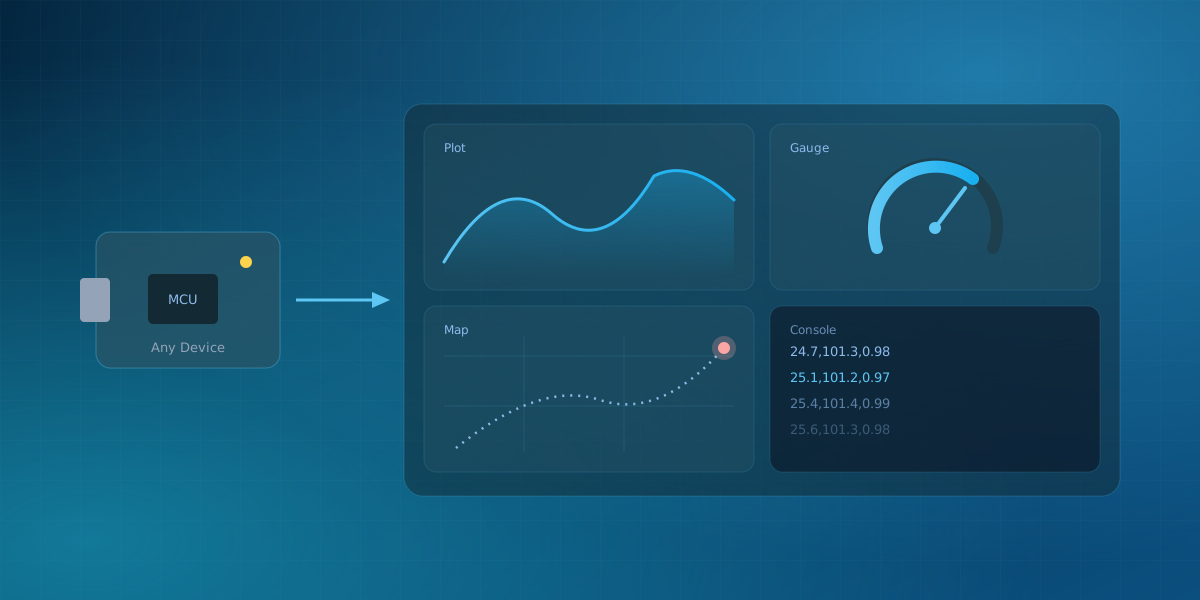
Serial Studio is a native macOS application (a universal build for both Apple Silicon and Intel), and it fills the gap those command-line tools leave. It lists the cu.* devices in a dropdown, so there is no path to type. The console gives you proper scrollback and a hex view for binary data. And because it is built for telemetry, it does the thing screen never will: if your device streams numbers, Quick Plot draws them as live graphs, and you can export the session to CSV.
You do not have to give up the terminal. screen is fine for a five-second sanity check. But when you actually want to read the data, watch it move, and keep a record of it, a real graphical monitor is the difference between squinting at scrolling text and seeing what your device is doing.
If you are new to serial ports in general, the companion post How to Read Data From a Serial Port covers baud rates and framing before you connect, and Your First Serial Studio Project walks through building a dashboard once you are ready.
Frequently asked questions
How do I exit screen?
Press Ctrl-A, then K, then answer y. That kills the session and releases the port. Do not use Ctrl-A d, which detaches instead: the session keeps running in the background and keeps the port locked.
Why does macOS say "Resource busy" when I open the port?
A detached or orphaned screen session is still holding it. Run screen -ls to list sessions and screen -X -S <name> quit to end one, or find the process with lsof /dev/cu.* and quit it. The port frees immediately; you do not need to unplug anything.
My board doesn't show up under /dev/cu.* at all. Now what?
Three causes cover almost every case. The cable is charge-only (surprisingly common; swap it for a known data cable). The adapter uses a CH340 chip and, on an older macOS version, still needs its driver installed. Or the board itself is not enumerating, which you can confirm in System Information → USB: if it is not in that list, no driver will help, and the problem is upstream of macOS.
Does the Arduino IDE's serial monitor work on a Mac?
Yes. If you already have the IDE installed, its Serial Monitor and Serial Plotter work the same on macOS as anywhere else, and they are fine for quick text output. The limits show up when you need scrollback, timestamps, logging to a file, or more than a basic plot, which is the gap the tools in this post fill.
Comments