Serial Monitor on Windows: Terminal Tools and a Native App
PuTTY handles serial ports fine, but not live numeric data. How Windows assigns COM port numbers, where PuTTY and Tera Term fall short, and what fills the gap.

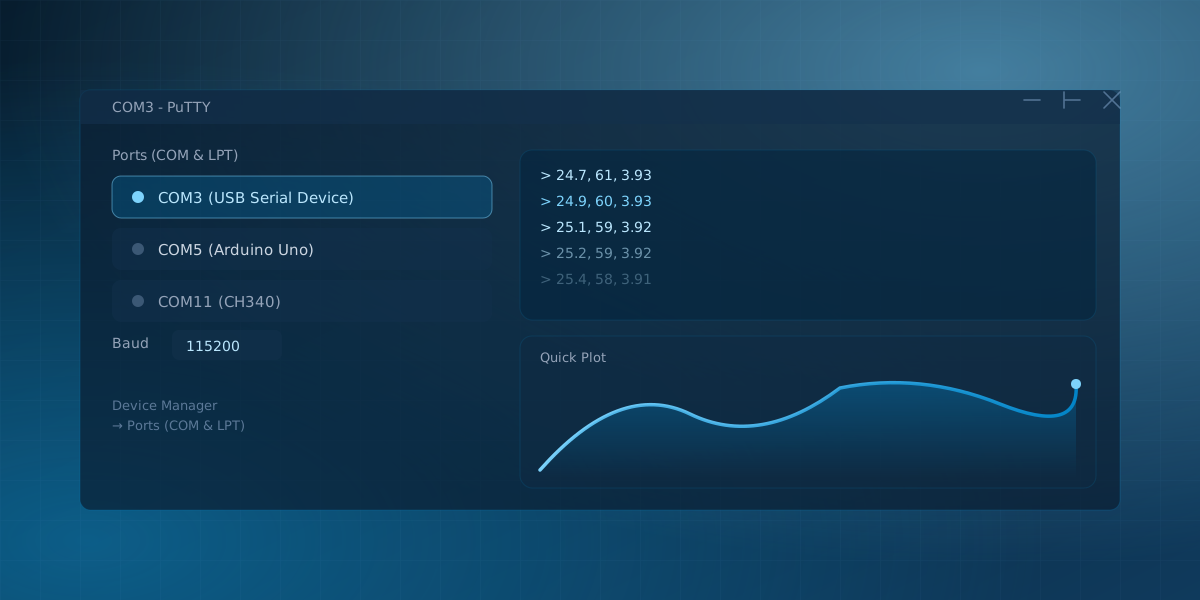
PuTTY is the first serial tool most Windows users install, and it earns that spot honestly: it is free, it has been rock solid for two decades, and it opens a COM port in a few clicks. What it does not do is plot a number. PuTTY, Tera Term, and the Arduino IDE's Serial Monitor all treat a serial port as a stream of text, because that is exactly what an SSH or telnet client is built to do. The moment your device sends comma-separated sensor readings instead of log lines, that design starts to show its seams.
This post covers how Windows assigns COM port numbers and why they move around, and where the classic terminal tools genuinely earn their reputation before they run out of road. Then it covers what to reach for when you need to watch numbers move instead of squinting at scrolling text.
How Windows names a serial port
Windows exposes every serial device, real or emulated, as a COM port with a number: COM1, COM3, COM14. That number is not a property of the hardware. It is assigned by Windows the first time it sees a given device, stored against that device's identity, and handed back out on later reconnects, at least when the adapter has a stable identity to key off of.
That last part is where the confusion starts. Adapters built around FTDI chips usually ship with a factory-programmed serial number, so Windows recognizes the same physical adapter wherever you plug it in and gives it the same COM number every time. Cheaper chips, and unprogrammed clones of otherwise good chips, often lack that unique serial number. Windows then falls back to identifying the device by its USB port location. Move the same adapter to a different USB port or a different hub, and it looks like a brand-new device, so it gets handed a fresh COM number instead of its old one.
Left unmanaged, this produces the classic Windows symptom of a machine that has only ever seen two or three adapters but is somehow offering COM11. Old numbers do not get freed automatically; Windows keeps counting up. Device Manager is where you settle the question for good. Search for it in the Start menu, expand Ports (COM & LPT), plug the adapter in, and watch which entry appears or changes. That is your current port and baud capability, regardless of what any app remembers from last time.
PuTTY, Tera Term, and the Arduino IDE's Serial Monitor
These three cover almost every "just let me see the bytes" situation on Windows, and each is genuinely good at a specific job. PuTTY connects to a COM port as readily as it connects over SSH, logs raw output to a file, and handles flow control and line-ending quirks that trip up lazier tools. None of that changes what it fundamentally is: a text terminal, not an instrument for numeric data.
PuTTY's limits show up as soon as the data itself becomes the point rather than the log. There is no plotting: a stream of 24.7, 61, 3.93 lines just scrolls by as text, one value indistinguishable from the next unless you read every line. You also re-enter the port and baud rate by hand each session; PuTTY does not scan and list available devices for you.
Tera Term is the other long-standing free option, and some engineers prefer it outright: it ships a macro scripting language for automating repetitive serial interactions, which PuTTY does not have. It is still a terminal window underneath. The same absence applies: no live graph of numeric values, no built-in CSV export of a session, no view that separates five interleaved sensor readings into five separate traces.
The Arduino IDE's Serial Monitor is the default for anyone starting from an Arduino sketch, and its companion Serial Plotter genuinely does draw a graph, which puts it a step ahead of the two terminal emulators. That graph is basic: one plot window, no gauges or multi-panel dashboards, no session export, and it clears every time you re-upload a sketch. The companion post Arduino's Serial Plotter, and where it falls short covers those limits directly. Whichever tool you use, the boundary is the same one draws itself over and over: text tools show text well, and asking them to also be a plotting instrument is asking for something they were never built to do.
A note on drivers
Windows does not bundle drivers for every USB-to-serial chip the way recent macOS releases now do for the common ones. FTDI and Silicon Labs CP210x adapters often work through Windows Update fetching the right driver automatically, but not always, and cheaper CH340-based adapters need a manual driver install more often than not. If a board or adapter is plugged in but does not appear anywhere under Ports (COM & LPT) in Device Manager, and instead shows up as an unknown device or not at all, that's a driver problem. Rule out a missing driver from the chip vendor's site before you start suspecting the cable or the board itself.
A native app that does the rest
Serial Studio is a native Windows application, and it picks up exactly where the terminal tools stop. It lists the current COM ports in a dropdown pulled straight from the same enumeration Device Manager uses, so there is no port number to remember or mistype. The console gives you scrollback and a hex view for binary data. Because the app is built around telemetry rather than text, its Quick Plot mode splits comma-separated numeric lines into separate live traces automatically, and the session records to CSV as it comes in.
None of this makes PuTTY or Tera Term the wrong choice. They remain the fastest way to confirm a device is alive and talking, and their logging and scripting features cover real needs a plotting tool doesn't try to solve. But once the question changes from "is it sending anything" to "what is it actually sending, and how is it changing," a graphical monitor built for numbers is the difference between reading scrolling text and watching your device's behavior take shape.
If you are new to serial ports generally, How to Read Data From a Serial Port covers baud rates and byte framing before you connect anything, and Your First Serial Studio Project is the step-by-step next move once it is talking.
Frequently asked questions
Why does my COM port number keep changing?
Most likely your adapter has no factory-programmed unique serial number, so Windows identifies it by USB port location instead of by the device itself. Plugging it into a different port or hub then looks like a new device, and it gets a new COM number rather than its previous one.
Do I need a driver for my USB-serial adapter?
Sometimes. FTDI and CP210x-based adapters often get picked up through Windows Update, but not universally, and CH340-based adapters usually need a manual driver install. If Device Manager does not show your adapter under Ports (COM & LPT) at all after plugging it in, a missing driver is the first thing to check.
Can I use PuTTY for live numeric data?
You can open the port and watch the numbers scroll past as text, but PuTTY has no plotting: it will not graph a stream of sensor readings or separate multiple comma-separated values into their own traces. For that you need a tool built around structured data rather than a terminal emulator.
How do I find out which COM port my board is on?
Open Device Manager and expand Ports (COM & LPT). Unplug the board, note what disappears, plug it back in, and note what reappears; that entry names both the current COM number and, usually, the chip driving it.
Comments