Data Logging and Session Replay in Serial Studio
How Serial Studio records live telemetry to CSV, MDF4 or a session database, and how replay feeds that recording back through the same dashboard.

You cannot watch a dashboard forever. The fault that matters might happen at 3 a.m., during the one test run nobody was staring at the screen for, or three weeks before someone asks "what was the coolant temperature doing right before it failed?" A live view answers questions about right now. Everything else needs a recording.
Serial Studio gives you three ways to keep that recording: a plain CSV file, a binary MDF4 file, and, on Pro, a per-project SQLite session database with its own browser and replay. Each one writes in the background while the dashboard keeps running, and each one can be played back later through the exact same pipeline that rendered it live. This post walks through what each format actually stores, when to reach for which one, and what "replaying a session" really means under the hood.
Why record telemetry at all?
A dashboard shows you the present moment; a recording is the only way to answer a question after the moment has passed. Serial Studio writes every incoming frame to disk on a background thread, so the same session that renders live can also be reopened, searched, or handed to a colleague later.
That covers three cases a live view can't. First, compliance and lab work, where a test needs a durable, timestamped record regardless of whether anyone watched it happen. Second, intermittent faults: the kind of bug that shows up once in a six-hour soak test and never again, where a recording is the only chance to look closely afterward. Third, sharing, since a .csv or .mf4 file travels to a teammate's laptop far more easily than "come look at my screen."
What does Serial Studio actually record?
Recording runs in parallel with the dashboard rather than competing with it: frames are queued lock-free on the main thread and a background worker writes them in batched transactions, so disk I/O never blocks the live data path, whichever export format is turned on.
Turn on CSV Spreadsheet or MDF4 Recording in the Setup panel's Data Export section (Pro adds Session Recording in the same place), and the corresponding file opens on the first frame received afterward. Disconnect, and the file closes automatically. Reconnect, and a fresh file starts with a new timestamp, so one file always maps to one continuous session.
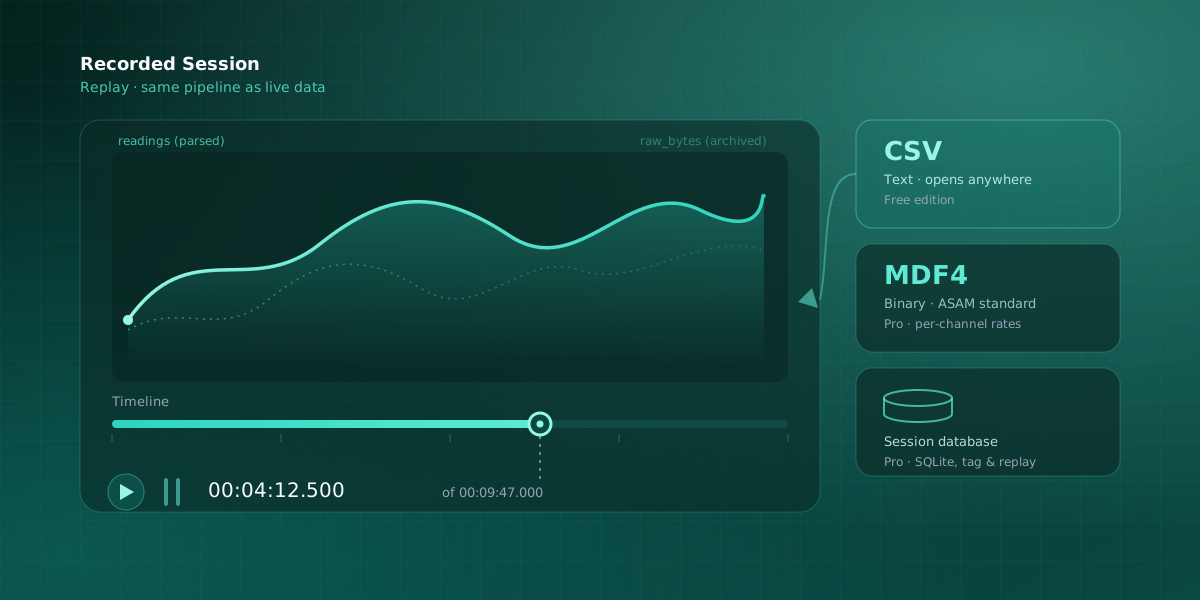
The session database, Serial Studio Pro's third option, goes further than a single export file. Each project gets one .db file under Session Databases/<Project Title>/, and every recorded session lives inside it as a set of rows rather than a separate file. Per session it stores three things keyed by timestamp: the parsed value of every dataset (readings), every raw byte that arrived on the driver (raw_bytes), and periodic snapshots of any data tables (table_snapshots, polled once a second). Alongside that sits the project itself, embedded as JSON at the moment recording started, which is what lets a session recorded months ago still replay correctly even if the live project has since changed.
The detail worth internalizing here: both the raw bytes and the already-parsed values are kept, but they serve different purposes. The raw bytes are an archival copy for inspection or export to another tool; they are not fed back through the frame parser during replay. Replay re-renders the dashboard from the stored parsed values instead. If you only remember one thing about the session database, make it that distinction.
CSV or MDF4: which export format fits?
CSV opens in anything with zero setup; MDF4 packs the same recording into a smaller binary file with per-channel sample rates and units, at the cost of needing MDF-aware tooling to read it back. Pick based on who (or what) opens the file next, not on which one sounds more serious.
CSV writes one header row (Elapsed (s) plus one column per dataset, labeled Group/Dataset) followed by one row per frame, with nanosecond-precision elapsed time in the first column. That structure is deliberately dumb: pandas.read_csv, Excel, MATLAB's readtable, and R's read.csv all open it without configuration. It is also available on the free edition, so it's the default starting point for anyone who just wants their data in a spreadsheet.
MDF4 (Measurement Data Format, standardized by ASAM) trades that universality for structure. Each project group becomes an MDF4 channel group with its own time base, so a 1 Hz GPS reading and a 10 kHz vibration channel share one file without either one padding the other out. Every channel carries physical units and a companion (raw) channel with the pre-transform value, and the whole thing is fixed-width binary, several times smaller than the equivalent CSV text. That combination, per-channel rates plus rich metadata plus compact size, is exactly what automotive and industrial test workflows already expect from CAN, LIN, and FlexRay logging tools like Vector CANape, NI DIAdem, or the open-source asammdf Python library.
If you already own an MDF4 toolchain from bench-testing ECUs or industrial rigs, exporting Serial Studio recordings into that same format means a fault captured on a prototype rig slots into the same CANape session as a fault captured on the production line, no format conversion in between. If you don't already have that toolchain, CSV gets you the same numbers with none of the setup. Worth knowing either way: CSV export and playback ship in the free edition, while MDF4 is Pro-only.
| CSV | MDF4 | |
|---|---|---|
| File size | Larger (plain text) | Smaller (binary) |
| Setup to read | None, any spreadsheet/CSV reader | Needs MDF-aware tooling (asammdf, CANape, DIAdem) |
| Per-channel sample rates | No, one shared row rate | Yes, each channel group keeps its own |
| Metadata | Header row only | Units and raw/physical value pairs per channel |
| Best fit | Ad-hoc analysis, sharing, spreadsheets | Existing automotive/industrial MDF toolchains |
| Availability | Free edition | Pro |
What actually happens when you replay a session?
Replay pushes a recording back through the same pipeline a live device uses, so the dashboard cannot tell the difference: Frame Builder hands values to the Dashboard, and the widgets, MQTT output, and the API all behave exactly as they would with a device plugged in.
The three replay paths differ in scope but share that same behavior underneath. CSV playback (Open CSV in the toolbar) and MDF4 playback (Open MDF4) each open a single recorded file and step it through the currently loaded project; for MDF4 files captured by other tools, channels map positionally onto the active project's datasets in file order, so the project needs to define its datasets in a matching order. While a file player is open, Serial Studio suppresses CSV and MDF4 export, so replaying a file can never accidentally re-record it. Session replay, the Pro session database's own replay button, is the most self-contained of the three: because the project is embedded with every session, replay restores that exact project automatically, so you don't need the original .ssproj file open, or even present on disk, for the dashboard to render correctly.
All three respect the original timing between frames, so a session recorded over ten minutes plays back over ten minutes, not instantly. Playback controls are consistent across the board: play/pause, step forward or back one frame, and a progress slider you can drag to any point in the recording.
Session replay specifically is read-only: it doesn't alter the stored session, and if CSV or MDF4 export happens to be toggled on while you replay, that just writes new output files the normal way. Serial Studio also remembers what project and operation mode were active before you started a replay and restores both automatically once it ends, so switching over to review an old session and back is a two-click detour, not a context switch.
What does the session database add beyond an export file?
A CSV or MDF4 file is one recording, full stop; the session database is a searchable archive of every session a project has ever produced, with tagging, notes, and one-click replay built in so you don't manage a folder of loose files by hand.
Open the Session Explorer (the Sessions button on the toolbar) and every session recorded for that project lists there, newest first, identified by start time, frame count, and any tags attached. From that list you can replay a session, export it to CSV, generate an HTML or PDF session report with summary statistics and charts, tag it with freeform labels like flight-test or regression, attach free-text notes, restore its embedded project to a standalone file, or delete it. A database can also be locked with a password that blocks deletion, useful if a session needs to survive someone's later cleanup pass.
None of this replaces CSV or MDF4 exports; the three are meant to run side by side. A practical pattern for long-running projects: keep the session database as the working archive for day-to-day tagging and replay, and periodically export the sessions worth keeping to MDF4 for long-term, tool-agnostic storage, since the database itself has no built-in retention policy and grows for as long as you record into it.
Try it without any hardware
Recording and replay are easiest to trust once you've watched a full loop: record something, close the device, then replay it and watch the dashboard reproduce the run exactly. You don't need real hardware on the bench to do that.
Two bundled examples make this a five-minute exercise. The Modbus PLC Simulator serves simulated PLC registers over TCP, so you can connect, turn on CSV or MDF4 export (or Session Recording on Pro), let it run for a minute, and disconnect. The CAN Bus Example does the same over a virtual CAN interface, with a DBC file decoding simulated engine frames into a real gauge cluster. Either way, once the file (or session) exists, open it back up: Open CSV, Open MDF4, or the Session Explorer's Replay button, and watch the same widgets redraw the same run.
Frequently asked questions
Can I replay a recording without the original device connected?
Yes, that's the entire point of replay. CSV and MDF4 playback need only the file and a matching project open; session database replay needs even less, since the project that produced the session is embedded inside the database itself and gets restored automatically when you hit Replay.
Is MDF4 or CSV the better export format?
Neither wins outright. CSV opens anywhere with no setup and is available in the free edition, which makes it the right default for ad-hoc analysis or sharing. MDF4 is smaller, carries per-channel sample rates and units, and fits directly into an existing automotive or industrial MDF toolchain, but it needs MDF-aware software to read and is a Pro feature.
Does the session database re-parse raw bytes when I replay a session?
No. Serial Studio stores both the raw bytes and the already-parsed dataset values for every session, but replay renders the dashboard from the stored parsed values, not from re-running the raw bytes through the frame parser. The raw bytes stay archived for inspection, CSV export, or external analysis.
Do I need Pro to record and play back data?
CSV export and playback ship in the free edition. MDF4 export and playback, and the entire session database (recording, Session Explorer, tagging, and reports), are Pro features. All three read and write the same underlying frame data; Pro adds the binary format and the searchable per-project archive on top of what free already does.
Comments