What's New in Serial Studio 4.2.3
Serial Studio 4.2.3 adds a Modbus bus monitor, console auto-replies and color rules, plot lanes, two built-in binary decoders, a kiosk display and a new store.

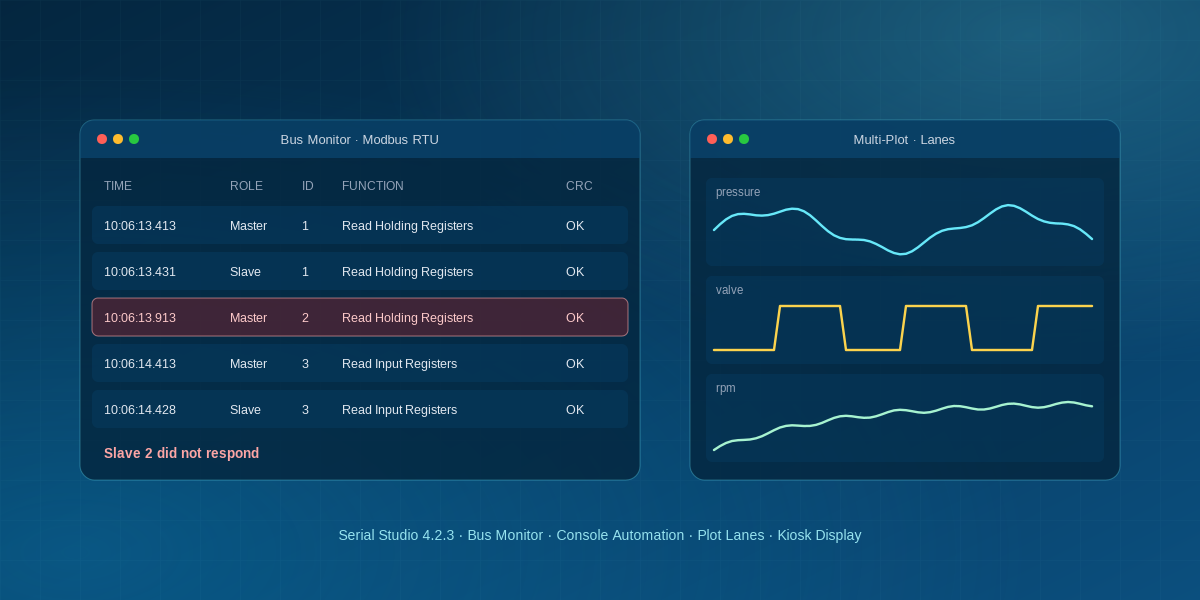
Serial Studio 4.2.3 is a bench release. Most of what is new helps when a link misbehaves and you need to see what is on the wire: a bus monitor that diagnoses Modbus RTU traffic, a console that can answer a device by itself, and plots that give each channel its own band. It also changes how the official build is licensed, which is covered at the end.
This is a tour of what changed, with links to the manual pages that cover each feature in full.
A bus monitor that says why
A PLC polls three drives over RS-485 and one of them drops out a few times an hour. A dashboard shows the gap. It does not show the cause.
The new Bus Monitor (Pro) is a panel in the console that lists every message on the line with its time. It has two modes:
| Mode | What it shows |
|---|---|
| Messages | Every send and every received burst of bytes, with its time, direction and length |
| Modbus RTU | Every Modbus RTU frame, labelled master or slave, with each request paired to its response and faults diagnosed |
In Modbus RTU mode it tells you which request went unanswered, which reply failed its CRC, and which slave answered with an exception. Wire a USB to RS-485 adapter in parallel with the bus, connect in Console Only mode so Serial Studio only listens, and open the panel. Unplug a slave and the master's row turns red with Slave 1 did not respond.
It needs no project, it works on any connection the console shows, and it never transmits. The Bus Monitor page covers the table, the diagnoses and the timeline.
A console that answers back
A bootloader prints READY and waits for GO. You can type it every time, or let the console do it. Three small tools were added to the console, in every edition, with no project needed:
- Command list. Pin the commands you send often, tick the ones you want, and the console sends them in order, each after its own delay, once or in a loop.
- Auto Reply. A table of rules: when a received message matches, the console sends the reply.
- Colors. Rules that draw chosen words in chosen colors, so
ERRORstands out in a busy log.
Their settings are stored with the application and not in the project file, so opening someone else's project never changes what your console sends. See Console Automation.
Plot lanes
A Multi-Plot draws every channel against one Y axis, which turns a 0 to 1 flag into a flat line beside a 0 to 4000 count. Press Lanes in the plot toolbar and the plot splits into one band per visible channel. The bands share the X axis, each scales to its own channel, and each shows the channel's name and range in its corner.
Hide a channel in the legend and the others grow to fill the space. Pause, the X cursors, and pan and zoom along X work as they do in the overlaid view, and the setting is saved with the widget. The Plots page has the details.
Two more built-in decoders
The built-in frame decoders read common formats from a form, with no script. Two were added for binary streams:
- Field layout takes a table with one row per channel: byte offset, bit offset, bit length, type, byte order, scale and offset. It covers the packed structs that used to need a small parser script.
- VOFA+ JustFloat decodes a frame of little-endian 32-bit floats into one channel per float, for firmware that already streams in that format.
Both expect the Binary (Direct) decoder. The Frame Parser Reference lists every template.
A kiosk display for operator stations
Operator runtime mode already opens a project straight into its dashboard. With --kiosk (Pro), the main window now fills its screen without a frame, and so does every dashboard or widget window saved on another screen. --kiosk-screen confines it to one named display, and --kiosk-reserve-left leaves a strip free for a launcher's own dock.
For machines where a launcher manages several full-screen programs, --kiosk-control connects Serial Studio to the launcher so it can raise, move and close the kiosk.
A related addition works in any mode: --define KEY=VALUE hands a value to the project's scripts for one run, without editing the project file. A launcher uses it for facts that belong to that run, such as which unit is on the test stand:
serial-studio --project cell.ssproj --define engine=2
The Command-Line Interface page documents every switch.
Licensing: a welcome dialog, and a new store
Two things changed in how the official build is licensed.
The trial starts from a welcome dialog. The first time you open the official build it offers Start Trial, Activate and Upgrade Now. The trial unlocks every feature for 14 days, needs an internet connection once and asks for no card. When it ends, the official build needs a license before it will connect to a device; a session that is already running is not cut off, and recorded files and the Project Editor stay available. The GPLv3 source is unchanged: build it yourself and it is free with no time limit.
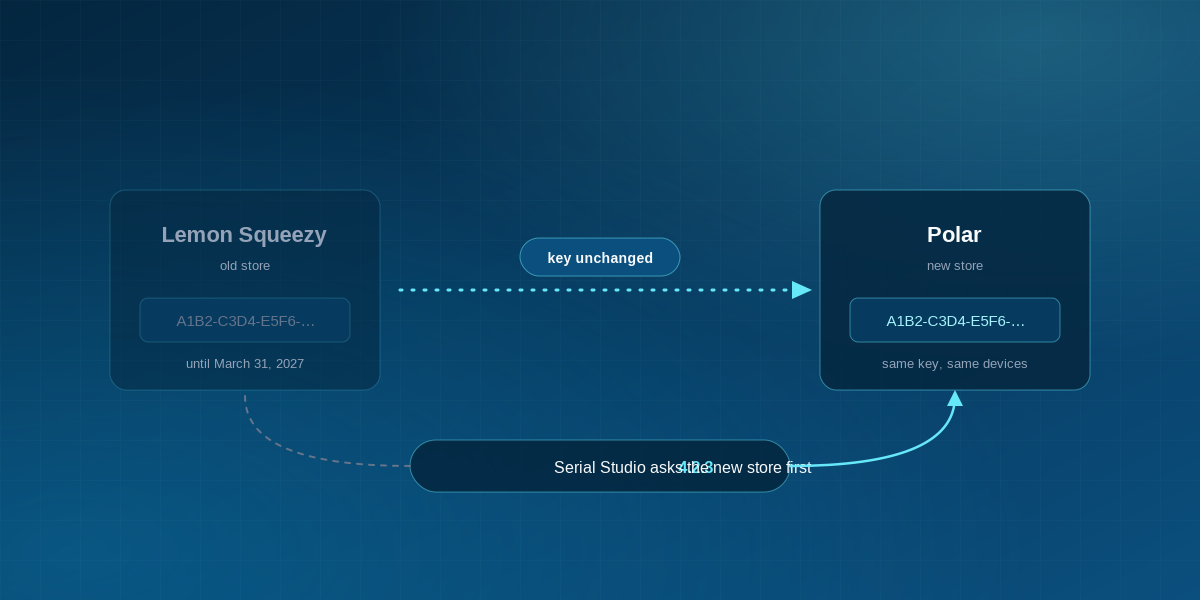
The store moved to Polar. Existing license keys keep working, unchanged, and 4.2.3 is the version that knows about both the new store and the old one. If you already hold a license, updating to 4.2.3 is the one thing to do. Serial Studio's Store Is Moving to Polar explains the move, and How to Activate Serial Studio Pro walks through activation.
A security fix
The viewer that shows help pages and the READMEs of examples and extensions rendered their Markdown without filtering the HTML inside it. A README from a third-party extension repository could run script as soon as you opened its detail page, before anything was installed. In 4.2.3 that content goes through the same allow-list filter the AI assistant's transcript already used, and the viewer opens only web and mail links outside the app.
If you add extension repositories you do not control, update. Thanks to adriaang1thub for the report.
Getting 4.2.3
Download it and install it over your current version. Projects, settings and your activation carry over.
Comments