Activate Serial Studio Pro Offline
How to activate Serial Studio Pro on an air-gapped machine with no internet: save a device file, get a signed license file from the website, and import it.

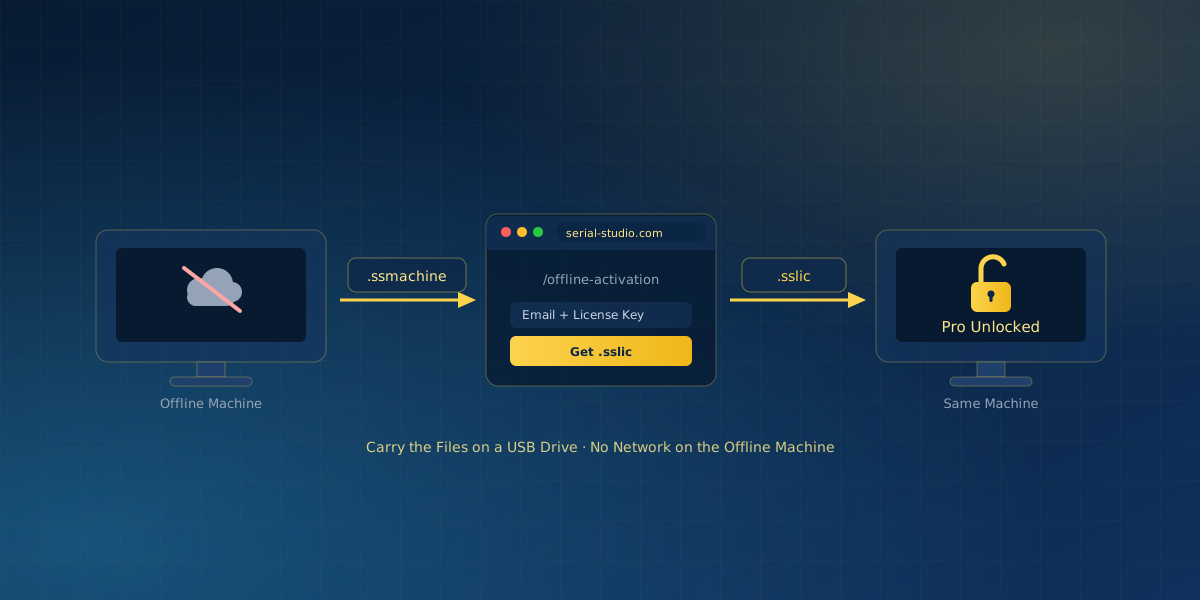
Some of the machines that run Serial Studio never touch the internet. Industrial benches, locked-down deployments, and genuinely air-gapped systems cannot do a normal online license check. Offline activation exists for exactly these cases: instead of validating over the network, the machine imports a signed license file that you fetch once from the activation website.
If your machine has occasional internet access, you do not need any of this. Normal online activation already tolerates being offline for up to 30 days.
Online or offline activation? If your machine reaches the internet, even briefly, online activation is simpler: paste the license key into the Licensing dialog and it validates in the background, with a 30-day offline grace period built in. Offline activation, covered in this post, is for air-gapped machines, test stands, or lifetime licenses that need the
.ssmachine/.sslicfile exchange instead.
Before you start
Two things are worth knowing up front:
- Offline activation is only for lifetime and test-stand licenses. Monthly and yearly subscriptions use online activation with the 30-day offline grace period instead.
- It permanently consumes a license seat. An air-gapped machine cannot report a deactivation, so the seat cannot be verified as released or moved to another machine. Plan your seats before you activate.
You will need the license key and the purchase email, the offline machine running a Pro build, a second computer with internet access (a phone works), and a way to carry a small file between them, such as a USB drive.
The three-step offline activation exchange
Offline activation is a short round trip: the offline machine produces a device file, the website turns it into a license file, and the offline machine imports that license file.
1. Save the device file
On the offline machine:
- Open the About dialog from the toolbar, then click Manage License.
- Click Activate Offline… to open the wizard.
- Click Save Device File… and store the
.ssmachinefile.
That file carries a hardware fingerprint and the application version. It contains no personal information.
2. Get the license file
On the computer with internet access:
- Go to serial-studio.com/offline-activation.
- Upload the
.ssmachinedevice file. - Enter the email address and license key from your purchase.
- Download the
.ssliclicense file the site returns.
The site verifies your license before it issues the file, so a valid Pro license is required.
3. Import the license file
Move the .sslic file back to the offline machine, then:
- Reopen the wizard from About → Manage License → Activate Offline….
- Click Import License File… and select the
.sslicfile.
Pro unlocks immediately, and the machine makes no network request to do it.
How the license behaves afterward
- The license file is bound to the machine that produced the device file. It will not activate any other computer.
- The same machine can be reactivated later by importing its
.sslicagain, as long as its machine ID has not changed. That ID is derived from the operating system, so it can change after an OS reinstall or certain hardware changes. - Because the seat cannot be released, keep the
.sslicfile somewhere safe with the machine it belongs to.
That is the whole process. If you are still deciding which edition you need, Pro vs Free lays out the differences, and Why Serial Studio Has a Pro License explains what the Pro tier funds.
Frequently asked questions
Can I move an offline license to another machine later?
No. An air-gapped machine cannot report a deactivation, so the seat cannot be verified as released or moved to another computer. Activating offline permanently consumes that seat, which is why it pays to plan your seats before you activate.
What does the .ssmachine device file contain?
A hardware fingerprint and the application version, nothing else. It carries no personal information, so there is no privacy concern in moving it on a USB drive or uploading it from a second computer.
Does the machine ever need internet access after activation?
No. Importing the .sslic file unlocks Pro immediately, and the machine makes no network request afterward. The same machine can be reactivated later by importing its .sslic again, as long as its machine ID has not changed; that ID is derived from the operating system, so an OS reinstall or certain hardware changes can invalidate it.
Why does the license fail to import after an OS update or reinstall?
The .ssmachine device file encodes a machine ID that comes from the operating system, not from Serial Studio. A major OS update, a reinstall, or a hardware swap can change that ID, which makes the machine's existing .sslic file stop matching. Export a fresh .ssmachine file from the updated machine and repeat the three-step exchange to get a license file that matches its new identity.
Comments