Model Context Protocol (MCP) Client
Demonstrates how to use the Model Context Protocol with Serial Studio, enabling AI models like Claude to interact with telemetry data.
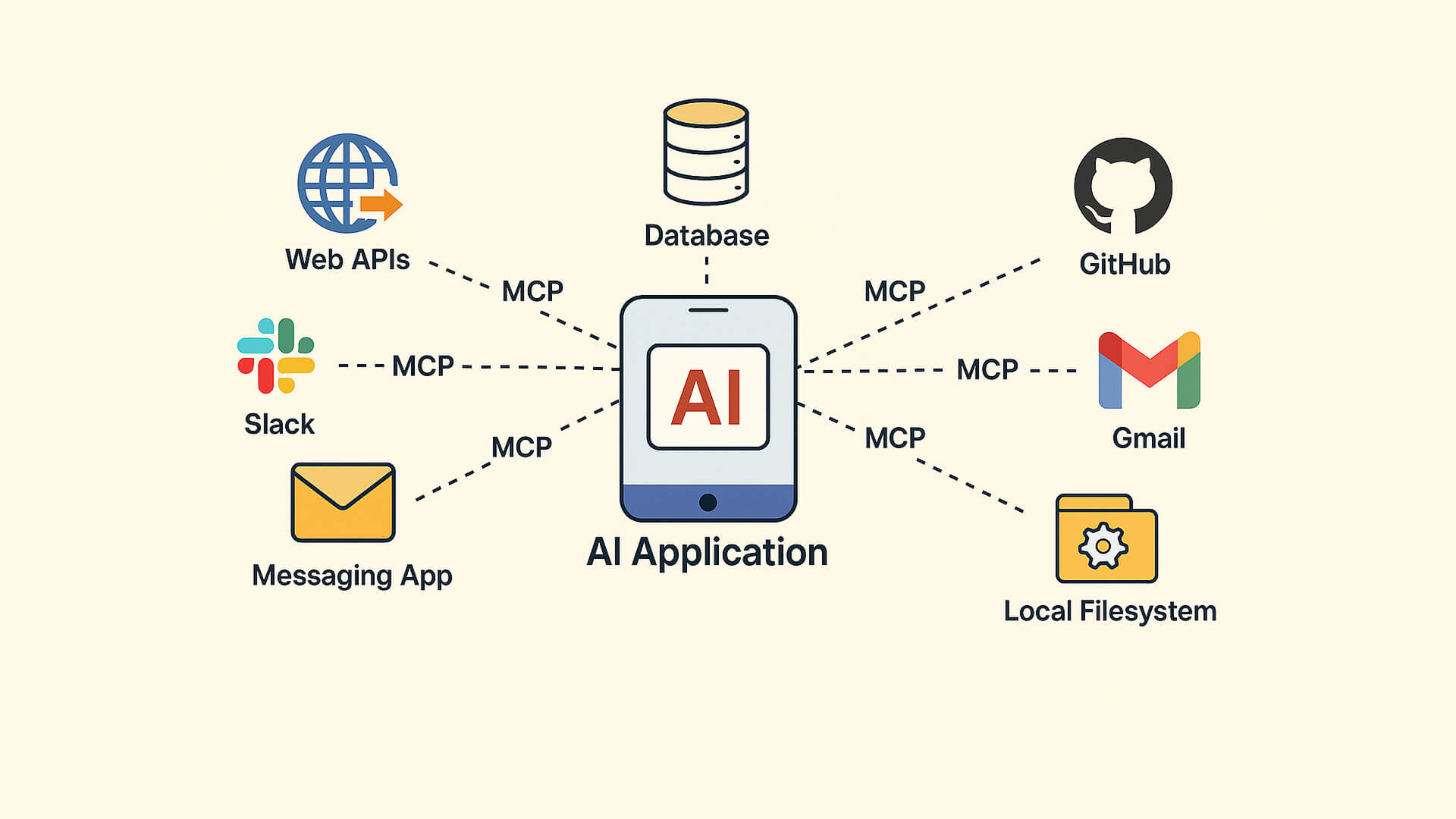
What you'll learn: how an AI assistant such as Claude reads telemetry and controls Serial Studio through the Model Context Protocol, using the API server and a Python client.
Prerequisites: Python 3, the API server enabled in Serial Studio's preferences, and optionally Claude Desktop for the bridge script.
This example demonstrates how to use the Model Context Protocol (MCP) with Serial Studio, enabling AI models like Claude to interact with telemetry data and control Serial Studio remotely.
Quick Start
1. Enable the API Server
- Launch Serial Studio
- Open Preferences (⚙️ icon in the toolbar, or
Cmd+,on macOS) - Enable "Enable API Server (Port 7777)" switch
- Close Preferences - server is now running on
localhost:7777
2. Run the Example Client
cd "examples/MCP Client"
python3 client.py
Expected Output
✓ Connected to Serial Studio at localhost:7777
✓ Initialized MCP session
  Server: Serial Studio
  Version: <your Serial Studio version>

✓ Available tools (...):
  • api.getCommands: Get list of all available commands
  • io.connect: Open the configured connection
  • io.disconnect: Close the current connection
  • io.getStatus: Query connection status
  • io.uart.setBaudRate: Set UART baud rate
  • project.template.list: List bundled project templates
  ...

✓ Available resources (2):
  • serialstudio://frame/current: Current Frame
    The most recent telemetry frame received
  • serialstudio://frame/history: Latest Frame
    The latest telemetry frame, as a JSON array

✓ Resource 'serialstudio://frame/current' read successfully
{
  "title": "Current Frame",
  "groups": [...],
  "actions": [...]
}
What is MCP?
Model Context Protocol (MCP) is Anthropic's open standard for connecting AI models to external tools and information. Serial Studio implements MCP to allow AI assistants like Claude to:
- Execute commands - Control Serial Studio (connect devices, start exports, etc.)
- Read telemetry data - Access the current real-time sensor frame
- Analyze data - Use AI to find patterns, anomalies, or insights
Architecture
Serial Studio uses a hybrid protocol approach:
- Same TCP server (port 7777) handles both legacy API and MCP
- Automatic detection - Protocol auto-detected based on message format
- Shared commands - All API commands automatically become MCP tools
Protocol Detection
// MCP message (has "jsonrpc": "2.0")
{
  "jsonrpc": "2.0",
  "id": 1,
  "method": "tools/list",
  "params": {}
}

// Legacy API (has "type" field)
{
  "type": "command",
  "id": "1",
  "command": "io.getStatus",
  "params": {}
}
MCP Capabilities
1. Tools
Every Serial Studio API command is exposed as an MCP tool, except the licensing
mutations and the process launcher, which the tool list omits. Each tool carries a
title and the MCP annotations derived from the in-app assistant's safety tiers:
readOnlyHint on reads and queries, destructiveHint on the delete, clear,
open-replace, credential and device-control families, and neither on reversible
settings. A hint describes the tool; every call still passes the remote gate and
the consent prompts of the TCP API.
{
  "name": "io.getStatus",
  "title": "IO / Get Status",
  "description": "Get connection status",
  "inputSchema": {"type": "object"},
  "annotations": {"readOnlyHint": true, "destructiveHint": false, "openWorldHint": false}
}
I/O Management:
| Command | Description |
|---|---|
io.connect |
Connect to device |
io.disconnect |
Disconnect |
io.getStatus |
Get connection status |
io.setBusType |
Set bus type (UART, Network, BLE, etc.) |
UART Configuration:
| Command | Description |
|---|---|
io.uart.setBaudRate |
Set baud rate |
io.uart.setDataBits |
Set data bits |
io.uart.setParity |
Set parity |
Network Configuration:
| Command | Description |
|---|---|
io.network.setRemoteAddress |
Set remote host |
io.network.setTcpPort |
Set TCP port |
io.network.setUdpRemotePort |
Set UDP remote port |
io.network.setUdpLocalPort |
Set UDP local port |
Project Management:
| Command | Description |
|---|---|
project.exportJson |
Read the active project as JSON |
project.template.list / project.template.apply |
Browse and apply bundled starters |
project.group.add / project.dataset.add / project.workspace.add |
Edit the in-memory project |
project.frameParser.setCode |
Update frame parser source |
Export:
| Command | Description |
|---|---|
csvExport.setEnabled |
Toggle CSV export |
csvExport.close |
Close the current CSV file |
mdf4Export.setEnabled (Pro) |
Toggle MDF4 export |
...and many more! Send tools/list over MCP (or
{"command": "api.getCommands"} over the legacy JSON protocol) to
enumerate the complete surface.
2. Resources
Available resources:
-
serialstudio://frame/current- Latest telemetry frame (JSON)- Real-time sensor data
- Updated whenever new frame arrives
-
serialstudio://frame/history- Latest telemetry frame, as a JSON array- Same frame as
serialstudio://frame/current, wrapped in a single-element array - No rolling buffer: the array holds 0 or 1 frames
- Same frame as
An MCP connection receives replies only: no frame broadcasts, raw device data or lifecycle
events. Telemetry is read on request with resources/read, or by polling dashboard.getData and
dashboard.tailFrames. Resources cannot be subscribed to, and the connection-scoped push commands
(mirror.subscribe, stream.subscribe) are refused.
Tool failures arrive as a successful tools/call result with isError: true. Its text blocks name
the tool, the arguments sent and the reason, so a model can correct the call. Only protocol faults
(an unknown tool, a missing tool name, non-object arguments) are JSON-RPC errors.
3. Prompts
Available prompts:
analyze_telemetry- Analyze current telemetry data
Example Usage
Python Client
See client.py for a complete example. Key methods:
from client import MCPClient

client = MCPClient()
client.connect()
client.initialize()

# List all available tools
tools = client.list_tools()

# Call a tool
result = client.call_tool("io.getStatus")

# Read current frame
frame = client.read_resource("serialstudio://frame/current")

# Read the latest frame as a single-element array
frame_array = client.read_resource("serialstudio://frame/history")
Manual Testing with netcat
# Connect to Serial Studio
nc localhost 7777

# Initialize MCP session
{"jsonrpc":"2.0","id":1,"method":"initialize","params":{"protocolVersion":"2024-11-05","clientInfo":{"name":"Test","version":"1.0"}}}

# List tools
{"jsonrpc":"2.0","id":2,"method":"tools/list"}

# Call a tool
{"jsonrpc":"2.0","id":3,"method":"tools/call","params":{"name":"io.getStatus","arguments":{}}}

# Read current frame
{"jsonrpc":"2.0","id":4,"method":"resources/read","params":{"uri":"serialstudio://frame/current"}}
Claude Desktop Integration
Claude Code and Cowork: the directory plugin. Install the Serial Studio
plugin (serial-studio) from the Claude directory. It runs this bridge from the
plugin folder, lists the tools and bundles a skill that states the prerequisite,
the read-first workflow and the consent prompts, so no configuration file is
edited. Source: https://github.com/Serial-Studio/claude-plugin. Claude Desktop's
chat does not load plugin servers; the manual configuration below is the route
for it and for any other MCP host.
Complete Step-by-Step Guide to Connect Claude Desktop with Serial Studio
Step 1: Enable Serial Studio API Server
- Launch Serial Studio
- Open Preferences (⚙️ icon in the toolbar, or
Cmd+,on macOS) - Enable "Enable API Server (Port 7777)"
- Keep Serial Studio running in the background
Step 2: Locate the Bridge Script
A ready-to-use MCP bridge script is included: claude_desktop_bridge.py
The bridge is located at:
examples/MCP Client/claude_desktop_bridge.py
This script connects Claude Desktop (stdio) to Serial Studio's TCP API (port 7777).
Features:
- Stays up while Serial Studio is away and reconnects by itself, at startup and mid-session; until then it lists one status tool, fails every other call with the fix, and names the fix on its last log line
- Proper error handling and logging
- Graceful shutdown
- Detailed status messages in Claude Desktop logs
Make it executable (Linux/macOS):
chmod +x claude_desktop_bridge.py
No installation needed - uses Python standard library only.
Step 3: Configure Claude Desktop
Locate your Claude Desktop configuration file:
macOS:
~/Library/Application Support/Claude/claude_desktop_config.json
Windows:
%APPDATA%\Claude\claude_desktop_config.json
Linux:
~/.config/Claude/claude_desktop_config.json
Edit (or create) the file and add the Serial Studio MCP server:
{
  "mcpServers": {
    "serial-studio": {
      "command": "python3",
      "args": ["/absolute/path/to/Serial-Studio/examples/MCP Client/claude_desktop_bridge.py"]
    }
  }
}
Important: Replace /absolute/path/to/Serial-Studio with the actual path to your Serial Studio repository/installation.
Example (macOS/Linux):
{
  "mcpServers": {
    "serial-studio": {
      "command": "python3",
      "args": ["/Users/YOUR_USERNAME/Documents/GitHub/Serial-Studio/examples/MCP Client/claude_desktop_bridge.py"]
    }
  }
}
Example (Windows):
{
  "mcpServers": {
    "serial-studio": {
      "command": "python",
      "args": ["C:\\Users\\YOUR_USERNAME\\Documents\\Serial-Studio\\examples\\MCP Client\\claude_desktop_bridge.py"]
    }
  }
}
Tip: Use the full absolute path to avoid issues. You can get it with:
# macOS/Linux:
cd examples/MCP\ Client && pwd
# Then append /claude_desktop_bridge.py to the output

# Windows (PowerShell):
cd "examples\MCP Client"; (Get-Location).Path
# Then append \claude_desktop_bridge.py to the output
Step 4: Restart Claude Desktop
- Quit Claude Desktop completely (not just close window)
- Start Serial Studio (if not already running)
- Enable API Server in Serial Studio Preferences
- Launch Claude Desktop
Step 5: Verify Integration
In Claude Desktop, try asking:
"Can you list all available Serial Studio tools?"
Claude should respond with a list of tools like:
io.connectio.uart.setBaudRateproject.open- etc.
Step 6: Use It!
You can now ask Claude to:
Connect to a device:
"List available serial ports, then connect to the Arduino on the first port with 115200 baud rate"
Read telemetry:
"Read the current telemetry frame from Serial Studio"
Analyze data:
"Read the current telemetry frame and tell me if the temperature sensor readings look anomalous"
Control Serial Studio:
"Change the baud rate to 9600, disconnect, and reconnect"
Export data:
"Start CSV export and tell me where the file will be saved"
Troubleshooting Claude Desktop Integration
Claude says "I don't have access to Serial Studio tools"
Fix:
- Check Claude Desktop logs:
- macOS:
~/Library/Logs/Claude/mcp*.log - Windows:
%APPDATA%\Claude\logs\mcp*.log - Linux:
~/.config/Claude/logs/mcp*.log
- macOS:
- Look for errors like "Failed to start" or "Connection refused"
- Verify the bridge script path in config is absolute (not relative)
- Test the bridge manually:
python3 claude_desktop_bridge.py # Should show: "✓ Connected to Serial Studio" # Press Ctrl+C to stop - Check the path is correct:
# Verify file exists
ls -l /path/to/claude_desktop_bridge.py
Bridge starts but Claude can't connect
Fix:
- Ensure Serial Studio is running (the tools appear once it answers, in either start order)
- Enable API server in Serial Studio Preferences
- Check port 7777 is not blocked:
lsof -i :7777(macOS/Linux) ornetstat -ano | findstr :7777(Windows) - Try connecting manually:
nc localhost 7777(should connect immediately)
"Connection refused" in logs
Fix:
- Serial Studio is not running → Start Serial Studio
- API server not enabled → Enable in Preferences
- Port already in use → Kill process using port 7777 or restart Serial Studio
Bridge works but no telemetry data
Fix:
- Connect a device or load a CSV/MDF4 file in Serial Studio
- Verify data is flowing (you should see frames in Serial Studio UI)
- Ask Claude:
"Read serialstudio://frame/current resource" - If empty, no data is being received by Serial Studio
Python not found
Fix:
- macOS/Linux: Use
python3in config (notpython) - Windows: Use
pythonin config and verify Python is in PATH - Specify full path:
"command": "/usr/bin/python3"or"command": "C:\\Python39\\python.exe"
Advanced: Custom Bridge Configuration
You can modify the bridge script to:
Change host/port:
SERIAL_STUDIO_HOST = "192.168.1.100"  # Remote Serial Studio
SERIAL_STUDIO_PORT = 7777
Add reconnection logic:
while True:
    try:
        sock = socket.socket(socket.AF_INET, socket.SOCK_STREAM)
        sock.connect((SERIAL_STUDIO_HOST, SERIAL_STUDIO_PORT))
        break
    except ConnectionRefusedError:
        log("Retrying in 2 seconds...")
        time.sleep(2)
Filter messages:
# Only forward specific tool calls
if b'"method":"tools/call"' in line:
    sock.sendall(line)
Troubleshooting
Connection Refused
- ✓ Check API server is enabled in Serial Studio Preferences
- ✓ Verify Serial Studio is running
- ✓ Confirm port 7777 is free:
lsof -i :7777
No Tools Listed
- ✓ Make sure you called
initializefirst - ✓ Check Serial Studio console for errors
- ✓ Verify you're using the correct protocol format
Empty Frame Data
- ✓ Connect a device or load CSV/MDF4 file
- ✓ Start receiving data in Serial Studio
- ✓ Frames only available when data is flowing
Security
MCP connections use the same security as the legacy API:
- Localhost only by default - Server binds to 127.0.0.1; the "Allow External API Connections" setting opts into binding all interfaces, gated behind a confirmation warning and a required auth token
- Rate limiting - 200 messages/second per client
- Buffer limits - 4MB max buffer, 1MB max message
- JSON depth - Max 64 nesting levels
- Client limit - Max 32 concurrent connections
Specification Compliance
Serial Studio answers protocol revisions 2024-11-05, 2025-03-26 and
2025-06-18: initialize echoes the revision the client offers when it is one
of these and answers 2025-06-18 to any other. Supported methods:
- ✅ JSON-RPC 2.0 protocol
- ✅
initializehandshake - ✅
tools/listandtools/call - ✅ Tool
titleandannotations(readOnlyHint,destructiveHint,openWorldHint) - ✅
resources/list,resources/read - ✅
prompts/list,prompts/get - ✅
pinghealth check - ✅ Notification support
Example Use Cases
1. Automated Testing
# Connect device via API
client.call_tool("io.connect")

# Read telemetry
frame = client.read_resource("serialstudio://frame/current")

# Verify sensor values
assert frame["groups"][0]["datasets"][0]["value"] < 100
2. AI-Powered Anomaly Detection
# Poll the current frame
frame = client.read_resource("serialstudio://frame/current")

# Send each frame to Claude for analysis
# "Analyze this telemetry data and identify any anomalies..."
3. Remote Control
# Change baud rate
client.call_tool("io.uart.setBaudRate", {"baudRate": 115200})

# Reconnect
client.call_tool("io.disconnect")
client.call_tool("io.connect")
Learn More
- MCP Specification: https://spec.modelcontextprotocol.io/
- Serial Studio API: See
app/src/API/for implementation - Claude Desktop: https://claude.ai/download
License
This example follows Serial Studio's dual-licensing:
- GPL-3.0-or-later for open source builds
- Commercial license for Pro builds
See main project LICENSE for details.