LTE Modem Signal Monitor
Demonstrates multiple methods (virtual serial port, MQTT, UDP) for receiving and visualizing signal quality data from an LTE modem.
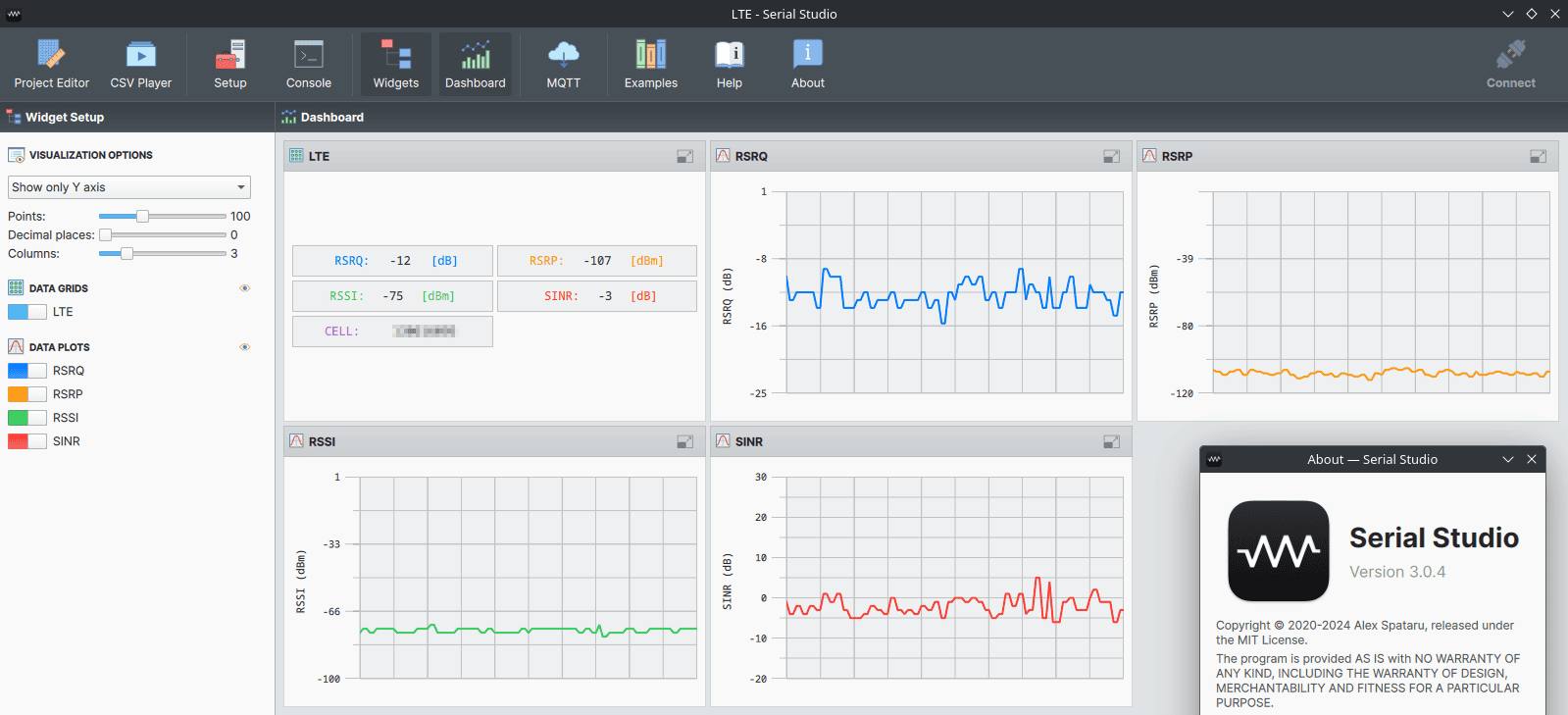
What you'll learn: three ways to get the same signal-quality data into a Data Grid: a virtual serial port, MQTT, and UDP.
Prerequisites: a HUAWEI K5161H LTE modem, Python 3 with requests, and socat and pyserial for the serial method. The MQTT method needs Serial Studio Pro.
Overview
This project shows how to use Serial Studio to visualize signal quality data from a HUAWEI K5161H LTE modem.
Three methods of sending data are described:
The examples were built on Arch Linux, where you can:
-
Run Serial Studio from AppImage.
-
Install it from the Arch User Repository (AUR) manually or with an AUR helper like
yay:yay -S serial-studio-bin -
Build it with cmake.
Data from the HUAWEI K5161H is pulled from the URL API http://192.168.9.1/api/device/signal. Python is used to receive, process, and generate data frames. All three scripts read the API with the requests library:
sudo pacman -S python-requests
Each frame carries five values, matching the datasets in LTE Modem.ssproj: cell ID, RSRQ (dB), RSRP (dBm), RSSI (dBm), and SINR (dB). All three scripts wrap each frame in the project's /* and */ start and end sequences.
Method 1: Virtual serial port
Create a virtual serial port
-
Install socat:
sudo pacman -S socat -
Create a linked pair of virtual serial ports,
ttyV0for listening andttyV1for sending data:socat -d -d pty,rawer,echo=0,link=/tmp/ttyV0,b9600 pty,rawer,echo=0,link=/tmp/ttyV1,b9600 -
Test the virtual serial ports by reading from
/tmp/ttyV0:cat /tmp/ttyV0and writing data to
/tmp/ttyV1:echo 100 > /tmp/ttyV1 -
Install
python-pyserial:sudo pacman -S python-pyserial -
Run the Python script
lte_serial.pyto process data and send it to/tmp/ttyV1:python lte_serial.py
Serial Studio configuration for the virtual serial port
- Run Serial Studio.
- In Device Setup, set Connection to UART/COM.
- Set Operation Mode to Project File.
- Pick Project file →
LTE Modem.ssproj. - Manually enter Serial Port →
/tmp/ttyV0and press Enter. - Pick Baud Rate → 9600.
- Click Connect in the upper right corner.
After the first frame of data arrives, Serial Studio opens the dashboard with plots automatically.
Method 2: MQTT
The MQTT driver is a Pro feature and requires a Serial Studio Pro license (trial or paid). See serial-studio.com for details.
Set up the MQTT broker
-
Install the MQTT broker Mosquitto:
sudo pacman -S mosquitto -
Run the MQTT broker with default settings:
mosquitto --verbose -
Test the broker by sending data:
mosquitto_pub -m "abcd,100,50,75,89" -t "lte" -
Install the Python MQTT client library, paho:
sudo pacman -S python-paho-mqtt -
Run the Python script
lte_mqtt.pyto process data and send it to the broker:python lte_mqtt.py
Serial Studio configuration for MQTT
- Run Serial Studio.
- In Device Setup, set Connection to MQTT Subscriber.
- Set Operation Mode to Project File.
- Pick Project file →
LTE Modem.ssproj. - Set Hostname → 127.0.0.1.
- Set Port → 1883.
- Set Topic Filter → lte.
- Set Keep Alive (s) → 600.
- Click Connect.
After the first frame of data arrives, Serial Studio opens the dashboard with plots automatically.
Method 3: UDP socket
The UDP socket approach is simpler than the others.
Run the Python script lte_udp.py to process data and send it to the UDP socket:
python lte_udp.py
Serial Studio configuration for UDP socket
- Run Serial Studio.
- In Device Setup, set Connection to Network Socket.
- Set Operation Mode to Project File.
- Pick Project file →
LTE Modem.ssproj. - Pick Socket Type → UDP.
- Set Remote Address → 127.0.0.1.
- Set Local Port → 5005.
- Click Connect in the upper right corner.
After the first frame of data arrives, Serial Studio opens the dashboard with plots automatically.