Audio Pipeline Validator
Converts audio data recorded via Serial Studio's Audio I/O driver into playable WAV files for validating data pipeline integrity.
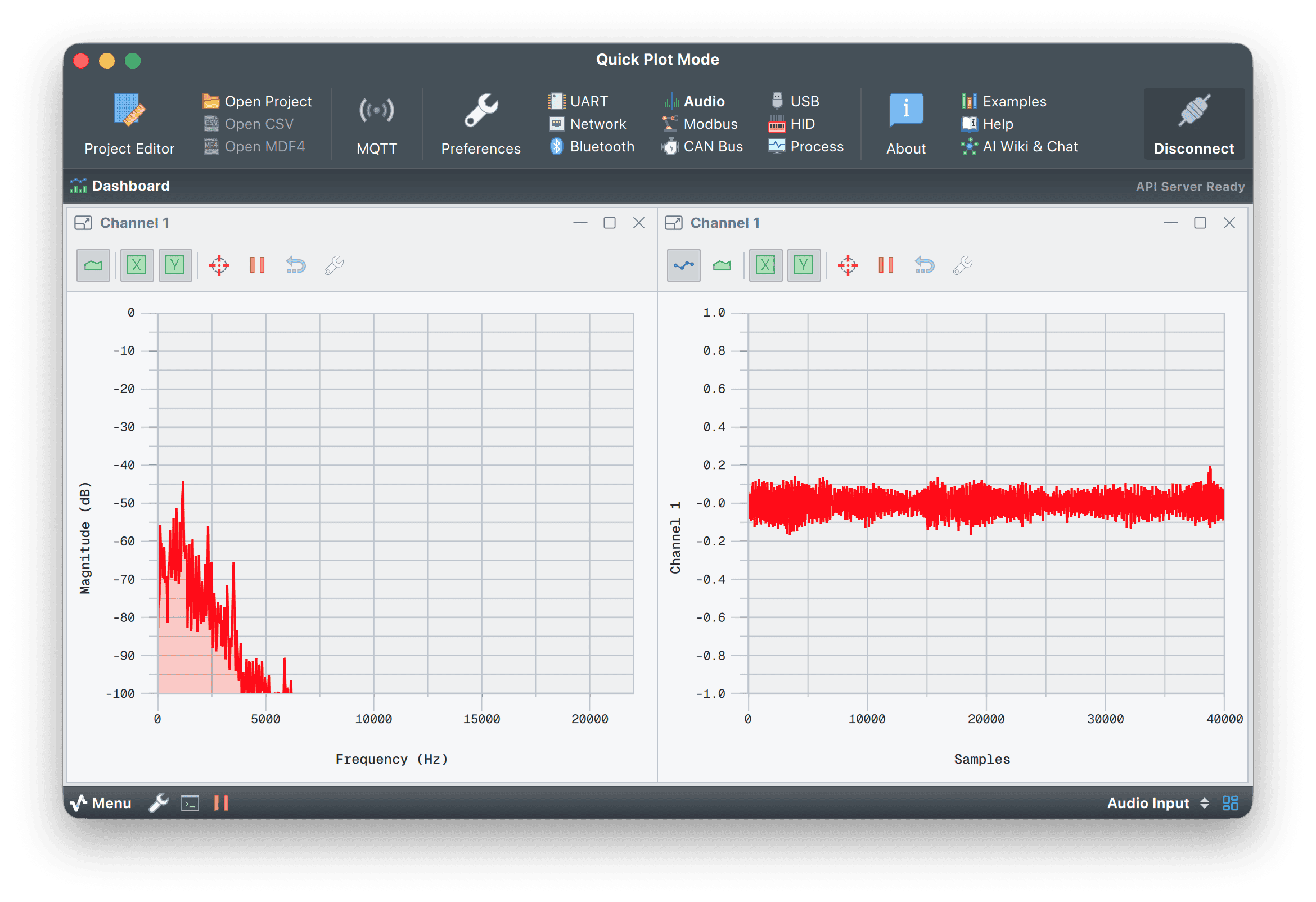
What you'll learn: how to check the acquisition pipeline end to end by recording audio through the Audio driver and converting the exported CSV back into a playable WAV file.
Prerequisites: Serial Studio Pro, Python 3 with numpy, and a microphone or other audio source.
Overview
This project is a utility for converting audio data recorded via Serial Studio's Audio driver into playable WAV files. It's for developers testing Serial Studio's data pipeline integrity using audio signals like voice, tones, or music. If the reconstructed .wav file sounds like the original, the I/O pipeline works.
No extra hardware needed. Just Serial Studio, a microphone or audio source, and this Python script.
The Audio driver needs a Serial Studio Pro license (a free trial unlocks it too). See serial-studio.com for details.
Audio format
Serial Studio logs audio samples to CSV like this:
Elapsed (s),Audio Input/Channel 1,Audio Input/Channel 2,...
0.000000,0.000000,0.002541,...
- First column.
Elapsed (s)relative timestamp, used to auto-detect the sample rate. - Remaining columns. Audio samples for each channel; any header ending in
Channel <n>counts. - Channel count. Mono, stereo, surround, and so on, depending on how many channels are logged.
Features
- Converts any Serial Studio CSV into a valid
.wavfile. - Supports mono, stereo, and multichannel audio.
- Auto-detects the sample rate from the
Elapsed (s)column (fallback 44,100 Hz). - CLI options for:
- Sample rate override (
--rate). - Input sample format (
--in_format:float32,int16,int24,int32,uint8). - TPDF dither before quantization (
--dither).
- Sample rate override (
- Removes DC offset and normalizes each channel automatically.
- Helps debug Serial Studio pipelines by letting you listen to the reconstructed audio.
How to use
1. Record audio in Serial Studio
- Set the input source (bus type) to Audio.
- Configure the number of channels (1 = mono, 2 = stereo, and so on).
- Enable data logging to a
.csvfile. - Speak, play music, or record any sound.
2. Convert CSV to WAV
python3 csv2wav.py path/to/audio.csv
You can optionally specify an output path, sample rate, and format:
python3 csv2wav.py path/to/audio.csv output.wav --rate 48000 --in_format int16
3. Listen to the result
- Open the generated WAV file in any media player.
- Compare it to your original source (mic recording, test tone, and so on).
- Clean, accurate playback means the data path works end to end.
Supported input sample formats
| Format | Bit depth | Range |
|---|---|---|
| float32 | 32-bit | -1.0 to 1.0 |
| int16 | 16-bit | -32768 to 32767 |
| int24 | 24-bit | -8388608 to 8388607 |
| int32 | 32-bit | -2147483648 to 2147483647 |
| uint8 | 8-bit | 0 to 255 (biased unsigned) |
Default is float32. The format describes the values stored in the CSV; the output WAV is always 16-bit PCM.
Example use case
As a developer or tester:
- Inject an audio signal into Serial Studio using a virtual mic or file playback.
- Serial Studio logs the raw data into a CSV file.
- Run
csv2wav.pyto convert it back into a WAV. - Listen to check whether the WAV matches the original audio.
If it sounds correct, the pipeline works. If it's clipped, noisy, or silent, check device config, sample rate, or formatting.
Files
csv2wav.py: the core CSV to WAV conversion script.README.md: project documentation and usage guide.
Dependencies
- Python 3.x.
numpy(install via pip).
pip install numpy
Command-line usage
python3 csv2wav.py input.csv [output.wav] [--rate <hz>] [--in_format <type>] [--dither]
input.csv: CSV file exported from Serial Studio.output.wav: optional name for the output WAV file.--rate: optional sample rate in Hz; when omitted it is derived from theElapsed (s)column, falling back to 44100.--in_format: input format (float32,int16,int24,int32,uint8).--dither: apply TPDF dither before int16 quantization.
[!TIP] For advanced resampling, route audio through a virtual loopback device and set the target frequency with Serial Studio. Then run
csv2wav.pyto export at the new frequency. This produces clean downsampling results suitable for slowed and reverb style mixes.
Troubleshooting
- WAV plays silence. Check whether your CSV has audio values, or just zeros.
- Distortion. Input values may exceed [-1, 1]. Normalize or rescale properly.
- Wrong channel order. Check that your audio source is mapped correctly in Serial Studio.