Serial Studio API Client
A Python client for the Serial Studio API with interactive REPL, CLI interface, and automated testing capabilities for controlling Serial Studio remotely.
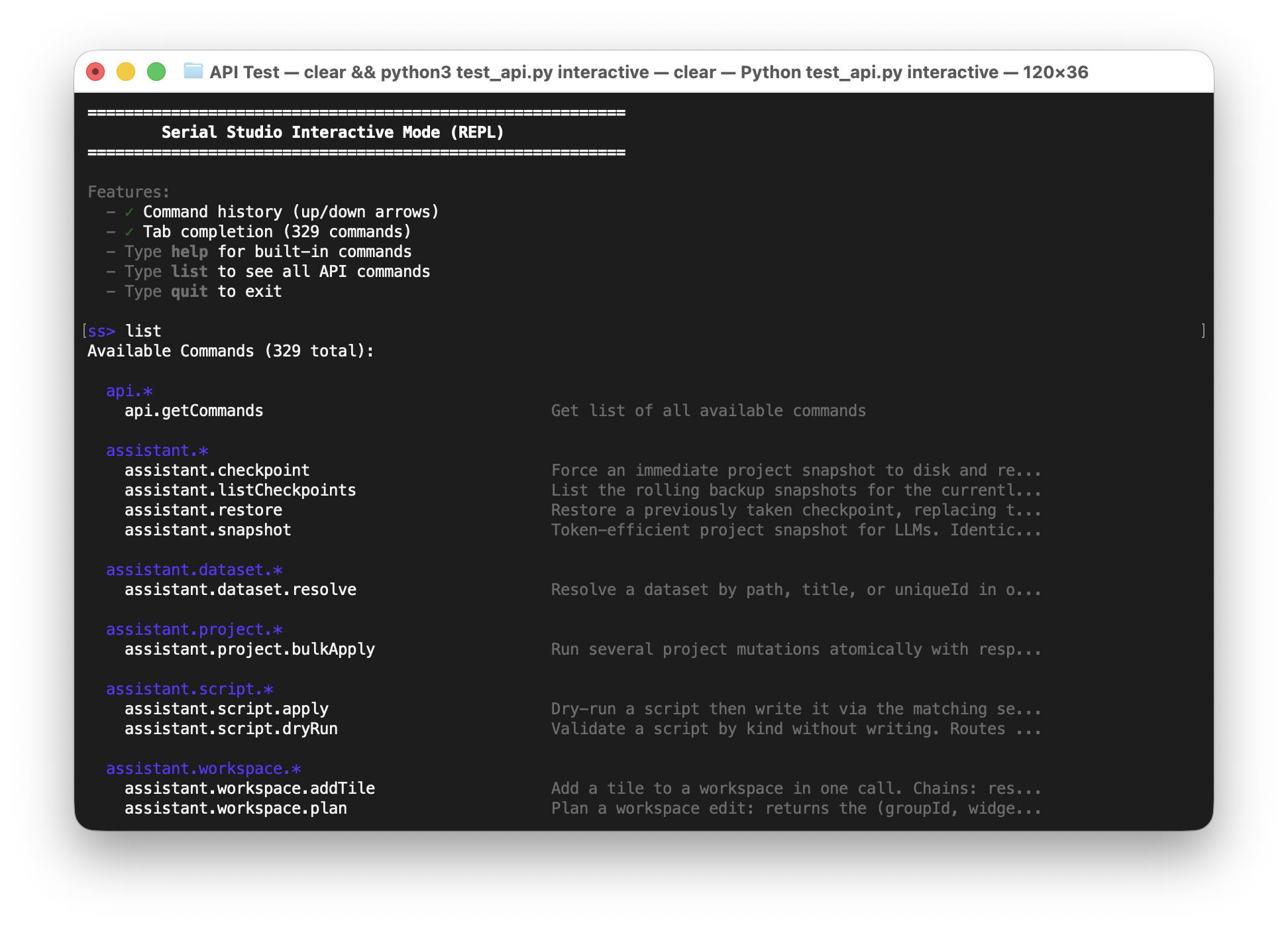
What you'll learn: how an external program drives Serial Studio through the TCP API server on port 7777, using a Python REPL, a command-line client, and automated tests.
Prerequisites: Python 3.8 or later with no extra packages, and the API server enabled in Serial Studio's preferences.
Difficulty: 🟡 Intermediate | Time: ~10 minutes | License: GPL / Pro
A Python client for the Serial Studio API that lets external programs control and configure Serial Studio over a TCP connection. It provides an interactive REPL, a command-line interface, and automated testing.
Overview
The Serial Studio API exposes a TCP server on port 7777 (default) that allows external programs to:
- Read and modify Serial Studio configuration (UART settings, network settings, etc.)
- Query connection status and available devices
- Control the I/O manager (connect, disconnect, pause)
- Send data to connected devices
- Configure device drivers (UART, Network, BLE, Modbus, CAN Bus, MQTT)
- Control export modules (CSV, MDF4)
This Python client provides:
- Interactive REPL: Explore the API with autocomplete-like features
- CLI Client: Send single commands or batches from the terminal
- Test Suite: Automated testing to verify API functionality
Quick Start
Prerequisites
-
Serial Studio running with API Server enabled
- Open Serial Studio
- Open Preferences, General tab, API & Plugins section
- Toggle Enable API Server (Port 7777)
- The server listens on port 7777
-
Python 3.8 or later (no additional dependencies required)
Test the Connection
cd "examples/API Test"
python test_api.py send io.getStatus
Expected output:
{
  "isConnected": false,
  "paused": false,
  "busType": 0,
  "configurationOk": false
}
Live Monitor Mode
Monitor Serial Studio in real-time with automatic status updates:
# Start live monitor (default 1 second updates)
python test_api.py monitor

# Fast updates (every 500ms)
python test_api.py monitor --interval 500

# Compact mode (append instead of clearing screen)
python test_api.py monitor --compact
Monitor Display
The live monitor shows:
- Connection Status: Real-time connection state with visual indicators
- Bus Configuration: Current Connection and settings
- Driver Details: Port, baud rate, IP address, etc. (based on active driver)
- Export Status: CSV/MDF4 export activity
- Change Notifications: Alerts when connection or pause state changes
- Update Statistics: Frame count and update interval
Press Ctrl+C to exit the monitor.
Interactive Mode (REPL)
The interactive mode provides an easy way to explore and experiment with the API with a full-featured shell:
python test_api.py interactive
Features
- Command History: Use ↑/↓ arrow keys to navigate through previous commands (requires readline)
- Tab Completion: Press Tab to autocomplete command names
- Colored Output: Syntax-highlighted responses and error messages
- Persistent History: Commands are saved between sessions in
~/.serial_studio_api_history
REPL Commands
Inside the REPL, you can use these special commands:
| Command | Description |
|---|---|
help |
Show help and available commands |
list |
List all API commands with descriptions |
clear |
Clear the screen |
quit / exit |
Exit the REPL |
Example REPL Session
$ python test_api.py interactive

Connecting to 127.0.0.1:7777...
Connected!

==========================================================
        Serial Studio Interactive Mode (REPL)
==========================================================

ss> io.getStatus
{
  "isConnected": false,
  "paused": false,
  "busType": 0,
  "configurationOk": false,
  "readOnly": false,
  "readWrite": false,
  "busTypeName": "Serial Port"
}

ss> io.uart.setBaudRate {"baudRate": 115200}
{
  "baudRate": 115200
}

ss> io.uart.getConfig
{
  "port": "",
  "baudRate": 115200,
  "dataBits": 8,
  "parity": "None",
  "stopBits": 1,
  "flowControl": "None"
}

ss> list
Available Commands (...):

  api.*
    api.getCommands       Get list of all available commands

  io.*
    io.connect            Open the configured connection
    io.disconnect         Close the current connection
    io.getStatus          Get connection state and bus type
  ...

ss> quit
Goodbye!
Command-Line Usage
Send Single Commands
# Query connection status
python test_api.py send io.getStatus

# Set UART baud rate (key=value format - works on all shells)
python test_api.py send io.uart.setBaudRate -p baudRate=115200

# Set network address
python test_api.py send io.network.setRemoteAddress -p address=192.168.1.100

# Multiple parameters
python test_api.py send io.modbus.addRegisterGroup -p type=0 startAddress=0 count=10

# Boolean parameters
python test_api.py send io.setPaused -p paused=true

# JSON format (alternative)
python test_api.py send io.uart.setBaudRate --params '{"baudRate": 115200}'
List Available Commands
# Show all API commands with descriptions
python test_api.py list

# Output as JSON (for scripting); --json goes before the mode
python test_api.py --json list
Batch Commands from File
Execute multiple commands from a JSON file:
python test_api.py batch commands.json
Example commands.json:
[
  {
    "command": "io.setBusType",
    "id": "set-bus",
    "params": {"busType": 0}
  },
  {
    "command": "io.uart.setBaudRate",
    "id": "set-baud",
    "params": {"baudRate": 115200}
  },
  {
    "command": "io.uart.getConfig",
    "id": "get-config"
  }
]
Live Monitor
# Monitor connection status in real-time
python test_api.py monitor

# Fast updates (500ms)
python test_api.py monitor --interval 500

# Compact output (no screen clearing)
python test_api.py monitor --compact
Run Smoke Tests
The test mode is a small smoke suite, not a per-command verifier. It
introspects the live server with api.getCommands, then exercises:
- protocol invariants (unknown command -> structured error, response IDs match request IDs, batch order is preserved);
- one read-only command per scope (
io.getStatus,dashboard.getStatus,project.exportJson,console.getConfig, ...), skipped automatically when the command isn't registered (GPL build, feature off, missing Pro tier); - error-shape behavior (missing required param and type-mismatched param both come back as structured errors).
# Run smoke tests
python test_api.py test

# Verbose output (logs each request/response); --verbose goes before the mode
python test_api.py --verbose test
If a command vanishes from the C++ registry, the corresponding line in
the suite reports it as not registered -- which is the right signal
without needing per-handler test code that constantly drifts. For
exhaustive end-to-end coverage of every command, see the integration
test suite under tests/integration/.
Available API Commands
Use python test_api.py list to see all commands, or run python test_api.py interactive and type list in the REPL.
Core API (GPL)
io.*- I/O manager (connect,disconnect,setPaused,setBusType,writeData,getStatus,listBuses)io.uart.*- UART/Serial driverio.network.*- Network (TCP/UDP) driverio.ble.*- Bluetooth Low Energy driverconsole.*- Console/terminal controldashboard.*- Dashboard introspectionproject.*- Project model & editorproject.exportJson,project.validate,project.template.list,project.template.applyproject.source.*- Multi-source list/add/update/deleteproject.group.*- Group add/list/update/delete/duplicateproject.dataset.*- Dataset add/list/update/delete/duplicate/setOptionproject.action.*- Action add/list/update/deleteproject.workspace.*- Workspace add/list/update/deleteproject.frameParser.*- Frame parser get/set/dryRun
extensions.*- Extension repository managementui.window.*- Dashboard window layoutscripts.*- Read-only script asset access
Pro Features (Commercial License or Free Trial)
io.modbus.*- Modbus RTU/TCP driverio.canbus.*- CAN Bus driverio.audio.*- Audio input/output driverio.usb.*- Raw USB driverio.hid.*- HID driverio.process.*- Process I/O driverproject.mqtt.publisher.*/project.mqtt.subscriber.*- MQTT publisher/subscriber configuration (getConfig,setConfig,getStatus)mdf4Export.*- MDF4 export control (setEnabled,close,getStatus)notifications.*- Notification centerlicensing.*- License inspection (mutations are AI-blocked)sessions.*- Historian browse/replay/export
For the full reference with parameters and examples, see API-Reference.md.
Common Usage Examples
Example 1: Configure UART Connection
# Interactive mode
python test_api.py interactive

ss> io.setBusType {"busType": 0}
ss> io.uart.setBaudRate {"baudRate": 115200}
ss> io.uart.setParity {"parityIndex": 0}
ss> io.uart.setDataBits {"dataBitsIndex": 3}
ss> io.uart.setStopBits {"stopBitsIndex": 0}
ss> io.uart.listPorts
ss> io.uart.setPortIndex {"portIndex": 0}
ss> io.connect
Example 2: Configure Network (TCP) Connection
# Command-line mode
python test_api.py send io.setBusType -p busType=1
python test_api.py send io.network.setSocketType -p socketTypeIndex=0
python test_api.py send io.network.setRemoteAddress -p address=192.168.1.100
python test_api.py send io.network.setTcpPort -p port=8080
python test_api.py send io.connect
Example 3: Configure Bluetooth LE
# Interactive mode for easier device discovery
python test_api.py interactive

ss> io.setBusType {"busType": 2}
ss> io.ble.getStatus
ss> io.ble.startDiscovery
# Wait a few seconds...
ss> io.ble.listDevices
ss> io.ble.selectDevice {"deviceIndex": 0}
ss> io.ble.listServices
ss> io.ble.selectService {"serviceIndex": 0}
ss> io.ble.listCharacteristics
ss> io.ble.setCharacteristicIndex {"characteristicIndex": 0}
ss> io.connect
Example 4: Configure Modbus TCP (Pro)
python test_api.py send io.setBusType -p busType=4
python test_api.py send io.modbus.setProtocolIndex -p protocolIndex=1
python test_api.py send io.modbus.setHost -p host=192.168.1.50
python test_api.py send io.modbus.setPort -p port=502
python test_api.py send io.modbus.setSlaveAddress -p address=1
python test_api.py send io.modbus.setPollInterval -p intervalMs=1000
python test_api.py send io.modbus.addRegisterGroup -p type=2 startAddress=0 count=10
python test_api.py send io.connect
Example 5: Send Data to Connected Device
# Data must be Base64 encoded
echo -n "Hello World" | base64  # SGVsbG8gV29ybGQ=

python test_api.py send io.writeData -p data=SGVsbG8gV29ybGQ=
Example 6: Control CSV Export
python test_api.py send csvExport.setEnabled -p enabled=true
python test_api.py send csvExport.getStatus
python test_api.py send csvExport.close
python test_api.py send csvExport.setEnabled -p enabled=false
Example 7: Configure Dashboard Settings
# Get current dashboard configuration
python test_api.py send dashboard.getStatus

# Set operation mode (0=ProjectFile, 1=ConsoleOnly, 2=QuickPlot)
python test_api.py send dashboard.setOperationMode -p mode=2

# Set visualization refresh rate (FPS)
python test_api.py send dashboard.setFps -p fps=60

# Set the visible plot time window (seconds)
python test_api.py send dashboard.setTimeRange -p seconds=10

# Query individual settings
python test_api.py send dashboard.getOperationMode
python test_api.py send dashboard.getFps
python test_api.py send dashboard.getTimeRange
API Protocol Reference
Message Format
All messages are JSON objects terminated by a newline (\n).
Command Request
{
  "type": "command",
  "id": "unique-request-id",
  "command": "io.getStatus",
  "params": {"paused": true}
}
Success Response
{
  "type": "response",
  "id": "unique-request-id",
  "success": true,
  "result": {
    "isConnected": false,
    "paused": false
  }
}
Error Response
{
  "type": "response",
  "id": "unique-request-id",
  "success": false,
  "error": {
    "code": "INVALID_PARAM",
    "message": "Invalid port: 70000. Valid range: 1-65535"
  }
}
Error Codes
INVALID_JSON: Malformed JSON messageINVALID_MESSAGE_TYPE: Unknown or missing message typeUNKNOWN_COMMAND: Command not recognizedINVALID_PARAM: Parameter value out of range or invalidMISSING_PARAM: Required parameter not providedEXECUTION_ERROR: Command failed during executionOPERATION_FAILED: Operation could not be completed
Bus Types (for io.setBusType)
| Index | Name | License |
|---|---|---|
| 0 | UART (Serial) | GPL/Pro |
| 1 | Network (TCP/UDP) | GPL/Pro |
| 2 | Bluetooth LE | GPL/Pro |
| 3 | Audio | Pro |
| 4 | Modbus (RTU/TCP) | Pro |
| 5 | CAN Bus | Pro |
| 6 | USB (raw, libusb) | Pro |
| 7 | HID (hidapi) | Pro |
| 8 | Process I/O | Pro |
| 9 | MQTT Subscriber | Pro |
Use io.listBuses to discover the bus types your build supports.
Operation Modes (for dashboard.setOperationMode)
| Index | Name | Description |
|---|---|---|
| 0 | ProjectFile | Uses a project file to define dashboard structure and data parsing |
| 1 | ConsoleOnly | No parsing. Raw bytes flow only to the terminal, no dashboard |
| 2 | QuickPlot | Automatically detects and plots CSV-formatted data |
Troubleshooting
Connection Issues
Problem: Connection refused or Connection timed out
Solutions:
- Verify Serial Studio is running
- Check API Server is enabled (Preferences → General → API & Plugins)
- Confirm port number (default: 7777)
- Try specifying host/port explicitly:
python test_api.py --host 127.0.0.1 --port 7777 send io.getStatus
Parameter Format Issues
Problem: "Invalid JSON parameters" error
Solutions:
-
Use key=value format (easier on all shells):
python test_api.py send io.uart.setBaudRate -p baudRate=115200 -
On Windows PowerShell, escape JSON quotes carefully:
python test_api.py send io.uart.setBaudRate --params '{\"baudRate\": 115200}' -
Use interactive mode for complex commands
Command Not Found
Problem: UNKNOWN_COMMAND error
Solutions:
-
List all available commands:
python test_api.py list -
Check if the command requires a Pro license (API-Reference.md)
-
Verify command spelling and case (commands are case-sensitive)
Advanced Usage
Scripting with JSON Output
# Get status and extract specific field (--json goes before the mode)
STATUS=$(python test_api.py --json send io.getStatus)
IS_CONNECTED=$(echo $STATUS | jq -r '.result.isConnected')

if [ "$IS_CONNECTED" = "true" ]; then
    echo "Already connected"
else
    python test_api.py --json send io.connect
fi
Automation Scripts
#!/bin/bash
# Example: Create a script to configure and connect to your device

python test_api.py send io.setBusType -p busType=0
python test_api.py send io.uart.setBaudRate -p baudRate=115200
python test_api.py send io.uart.setPortIndex -p portIndex=0
python test_api.py send csvExport.setEnabled -p enabled=true
python test_api.py send io.connect

echo "Setup complete! Device connected and logging to CSV."
Custom Integration
#!/usr/bin/env python3
# Example: Create your own Python wrapper for the Serial Studio API
import socket
import json

def send_command(command, params=None):
    """Send a command to Serial Studio API and return the response."""
    sock = socket.socket(socket.AF_INET, socket.SOCK_STREAM)
    sock.connect(("127.0.0.1", 7777))

    msg = {
        "type": "command",
        "id": "custom-1",
        "command": command
    }
    if params:
        msg["params"] = params

    sock.sendall((json.dumps(msg) + "\n").encode())
    response = json.loads(sock.recv(65536).decode())
    sock.close()

    return response

# Example usage
status = send_command("io.getStatus")
print(f"Connected: {status['result']['isConnected']}")

send_command("io.uart.setBaudRate", {"baudRate": 115200})

# Add your application logic here
Security Considerations
-
Localhost Only: The API Server binds to localhost (127.0.0.1) by default and is not accessible from the network
-
No Authentication by Default: On the default loopback-only setup, the API does not require authentication - anyone with local access can control Serial Studio. Enabling Allow External API Connections requires non-loopback clients to present the generated API Access Token
-
Firewall: Ensure your firewall blocks external access to port 7777
-
Production Use: Do not expose the API Server to untrusted networks
Files in This Example
test_api.py- Main Python client (CLI, REPL, tests)README.md- This documentation filedoc/screenshot.png- Screenshot used in this README
The complete API command reference lives at doc/help/API-Reference.md.
License
This example is dual-licensed:
- GPL-3.0-or-later: For use with Serial Studio GPL builds
- LicenseRef-SerialStudio-Commercial: For use with Serial Studio Pro
See the main LICENSE file in the repository root for details.
More Information
- Serial Studio Wiki: https://github.com/Serial-Studio/Serial-Studio/wiki
- API Documentation: https://github.com/Serial-Studio/Serial-Studio/wiki/API-Reference
- Issue Tracker: https://github.com/Serial-Studio/Serial-Studio/issues
Contributing
Found a bug or have a suggestion? Please report it on the GitHub issue tracker.